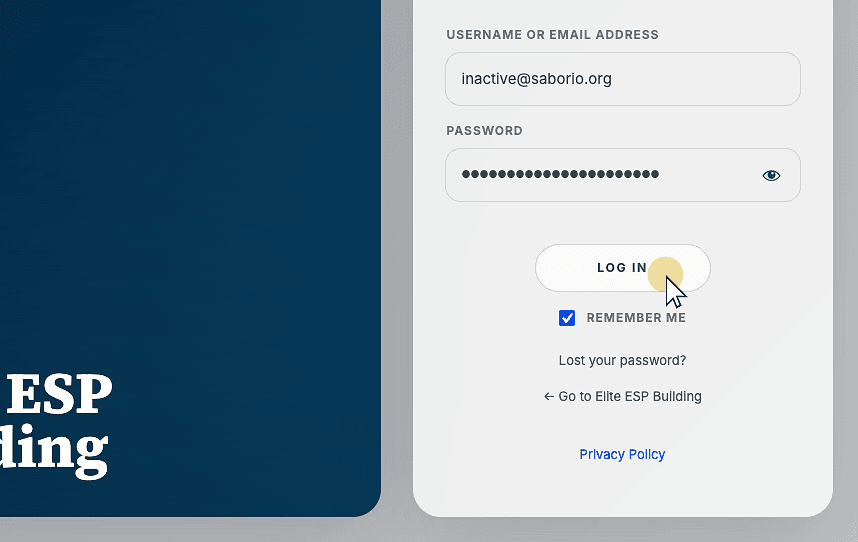
Resetting your password
Forgetting your password happens to everyone, and resetting it is a quick and easy process.
If you are unable to remember your password, you can start the password reset process directly from the login screen. Simply follow the instructions below and you will be guided through the steps to verify your account and choose a new, secure password.
When selecting your new password, we recommend choosing one that is unique to your Elite ESP Building account and not used for any of your other online accounts.
TEST CONTENT
Access the website
Start by heading to the Elite Zetland website at https://elitezetland.com
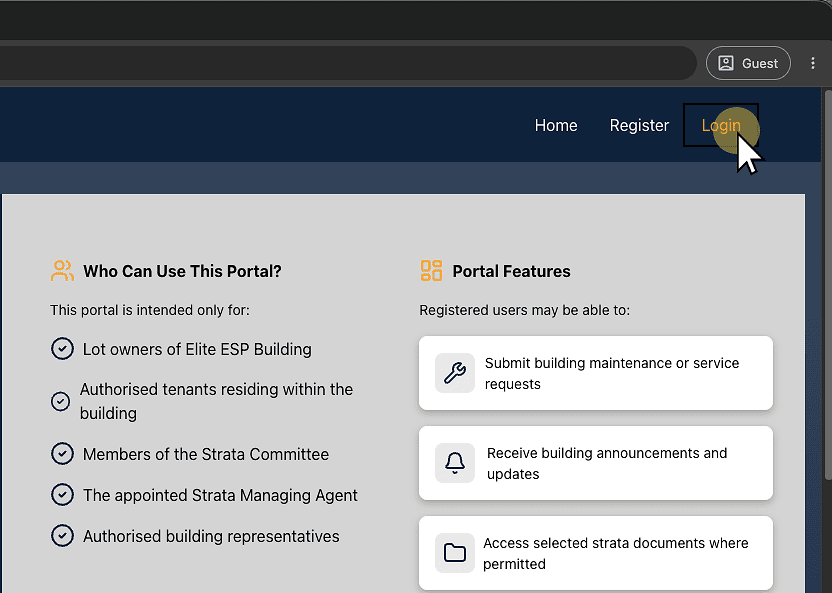
1. Click "Login"
Click the Login button in the top navigation bar to begin the process of signing in to the resident portal.
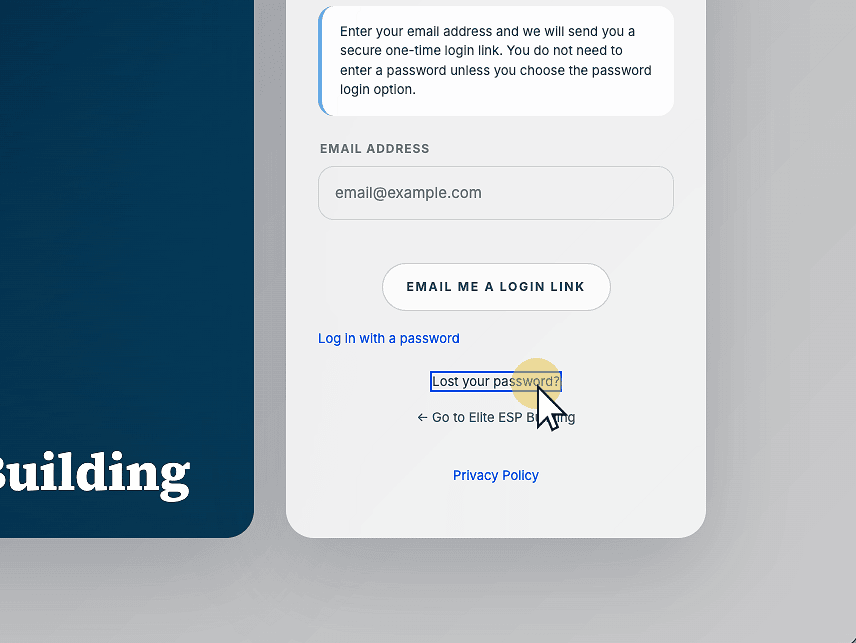
2. Click "Lost your password?"
Click the Lost your password? link to begin the process of resetting your password.
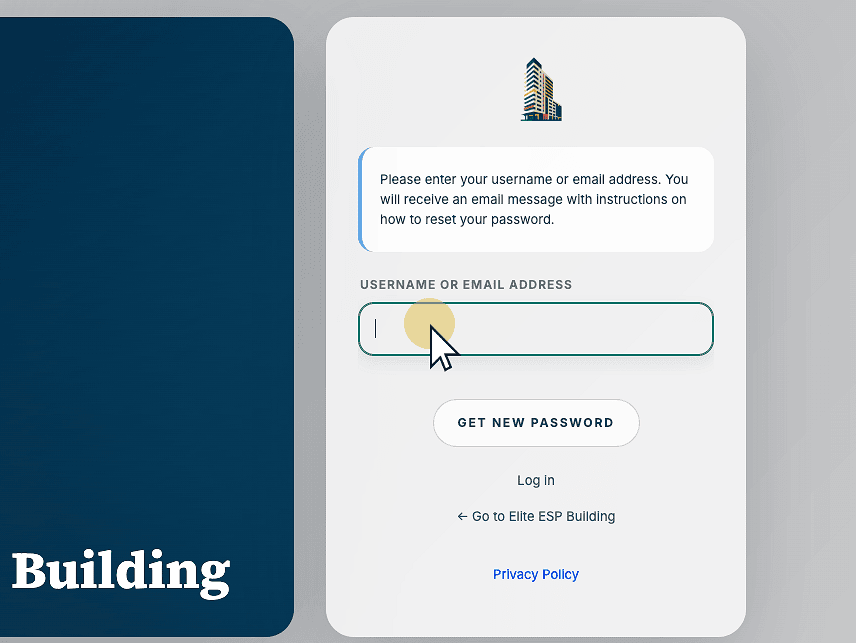
3. Enter your username or email
Enter your username or email address in the USERNAME OR EMAIL ADDRESS field to begin the password reset process.
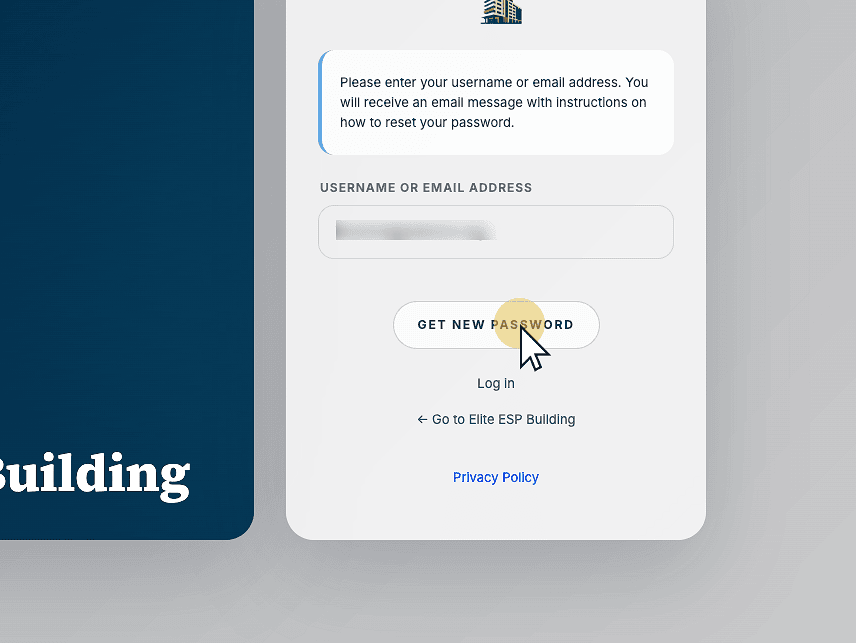
4. Click "Get New Password"
Click the Get New Password button to request a password reset link to be sent to your registered email address.
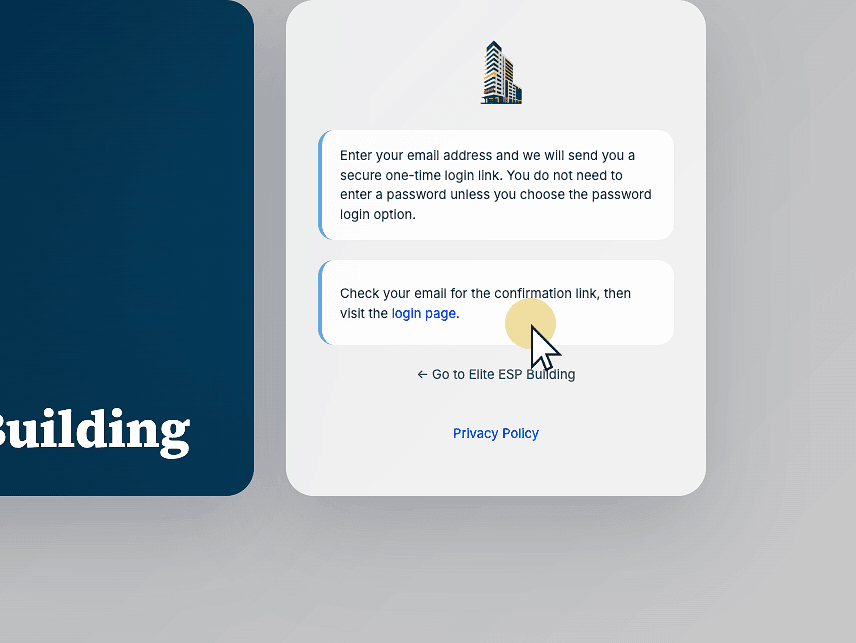
5. Review the message
Read the highlighted message instructing you to check your email for the confirmation link and then visit the login page to continue resetting your password.
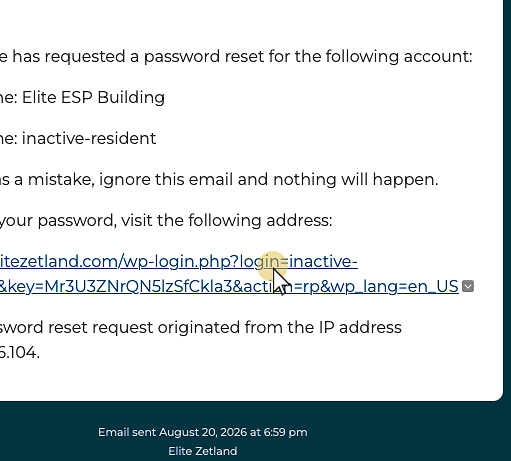
6. Check your email
Check your email to find the email on how to reset the password. If you do not see the email, check your SPAM folder.
Click the highlighted password reset link to open the page where you can set a new password for your account.
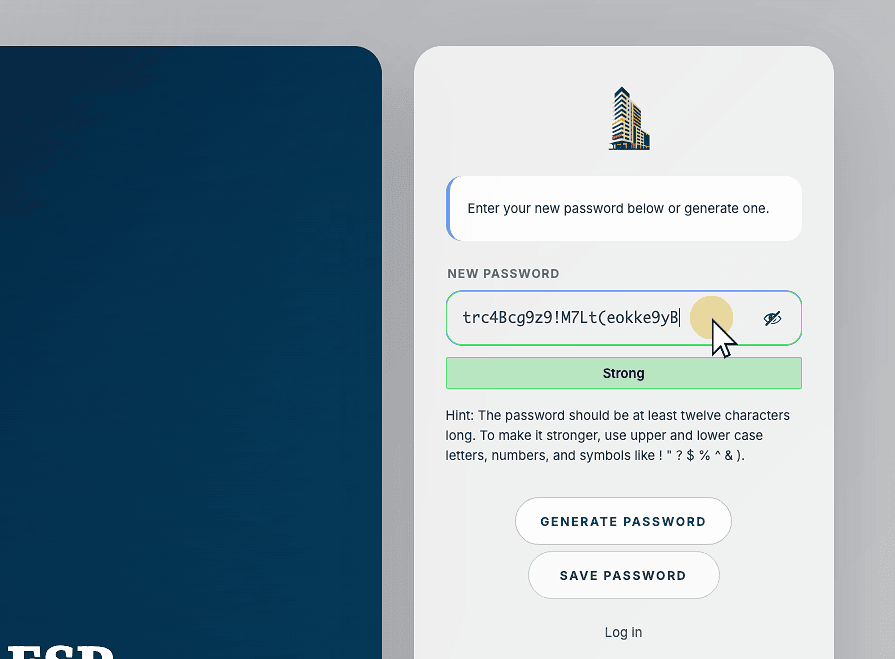
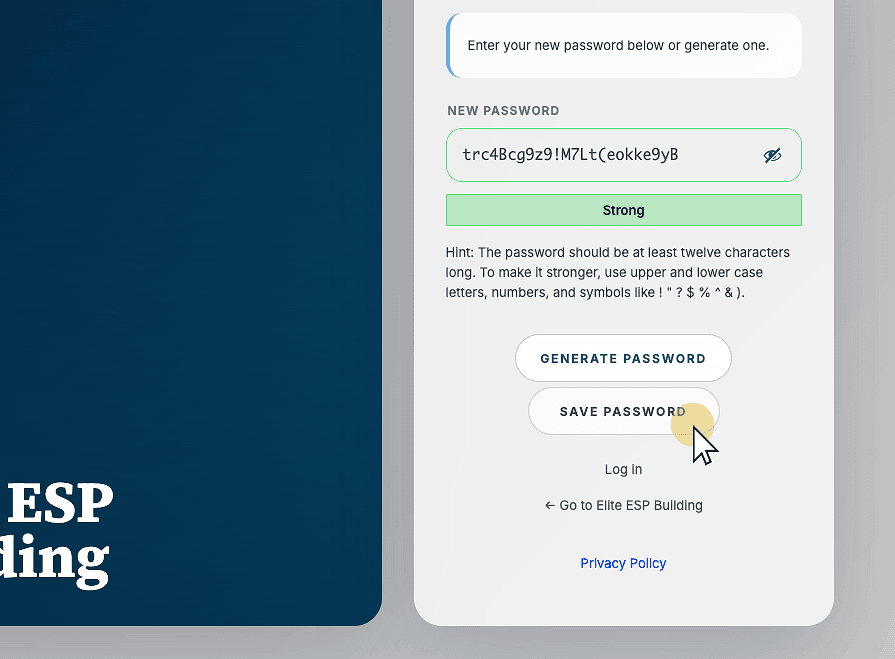
7. Enter new password
Accept the newly created password that has been created or enter your new password in the highlighted text field to continue with the password reset process.
8. Click "Save Password"
Click the Save Password button to confirm and apply your new password for your account.
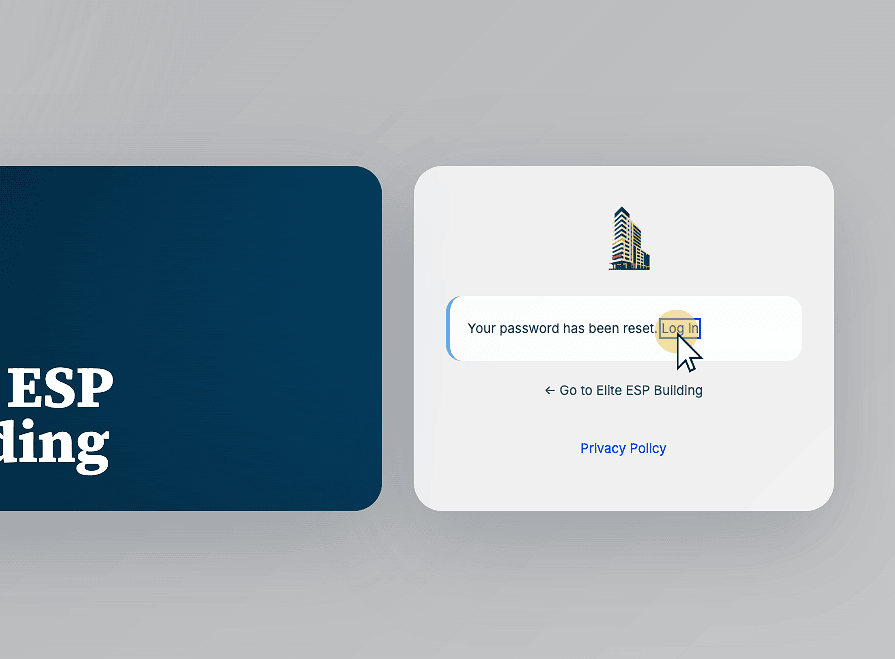
9. Click Log in
Click the Log in link to proceed to your account after successfully resetting your password.
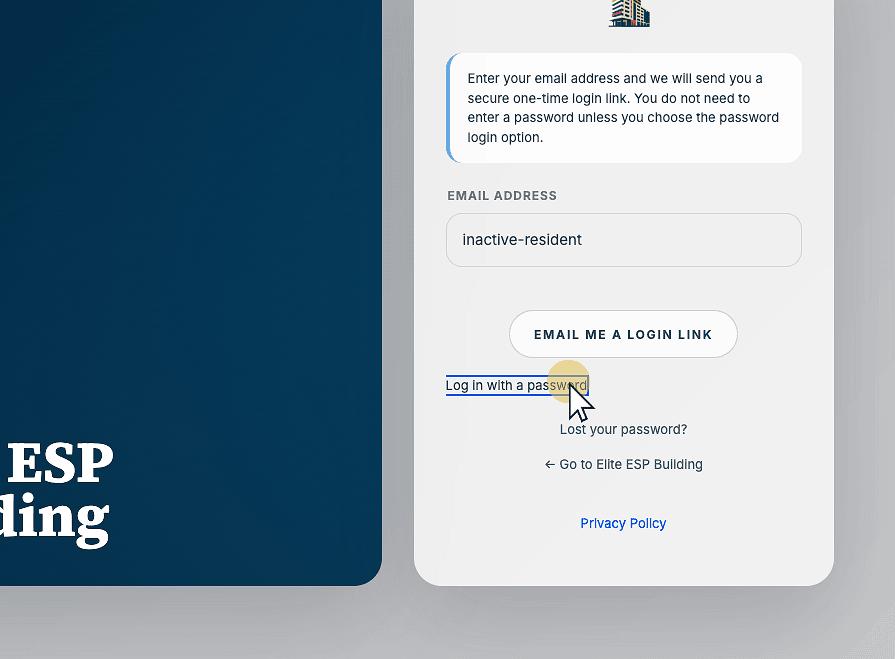
10. Click "Log in with a password"
Click Log in with a password to proceed to the password entry screen instead of using a one-time login link.
11. Click "Log In"
Enter your username and new password to proceed with the login process.